
3.2 KiB
Configuration
Balancing
By Used Memmory of VMs
By continuously monitoring the current resource usage of VMs, ProxLB intelligently reallocates workloads to prevent any single node from becoming overloaded. This approach ensures that resources are balanced efficiently, providing consistent and optimal performance across the entire cluster at all times. To activate this balancing mode, simply activate the following option in your ProxLB configuration:
mode: used
Afterwards, restart the service (if running in daemon mode) to activate this rebalancing mode.
By Assigned Memory of VMs
By ensuring that resources are always available for each VM, ProxLB prevents over-provisioning and maintains a balanced load across all nodes. This guarantees that users have consistent access to the resources they need. However, if the total assigned resources exceed the combined capacity of the cluster, ProxLB will issue a warning, indicating potential over-provisioning despite its best efforts to balance the load. To activate this balancing mode, simply activate the following option in your ProxLB configuration:
mode: assigned
Afterwards, restart the service (if running in daemon mode) to activate this rebalancing mode.
Grouping
Include (Stay Together)
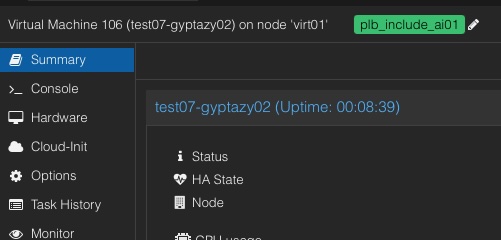 Access the Proxmox Web UI by opening your web browser and navigating to your Proxmox VE web interface, then log in with your credentials. Navigate to the VM you want to tag by selecting it from the left-hand navigation panel. Click on the "Options" tab to view the VM's options, then select "Edit" or "Add" (depending on whether you are editing an existing tag or adding a new one). In the tag field, enter plb_include_ followed by your unique identifier, for example, plb_include_group1. Save the changes to apply the tag to the VM. Repeat these steps for each VM that should be included in the group.
Exclude (Stay Separate)
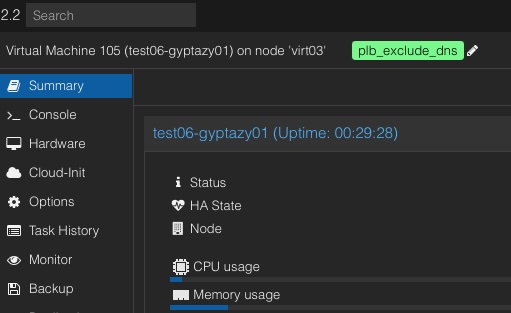 Access the Proxmox Web UI by opening your web browser and navigating to your Proxmox VE web interface, then log in with your credentials. Navigate to the VM you want to tag by selecting it from the left-hand navigation panel. Click on the "Options" tab to view the VM's options, then select "Edit" or "Add" (depending on whether you are editing an existing tag or adding a new one). In the tag field, enter plb_exclude_ followed by your unique identifier, for example, plb_exclude_critical. Save the changes to apply the tag to the VM. Repeat these steps for each VM that should be excluded from being on the same node.
Ignore VMs (tag style)
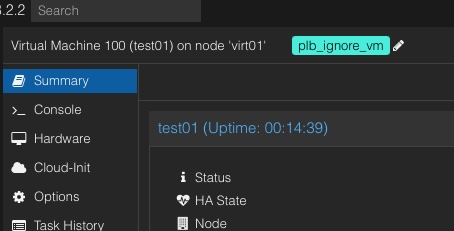 In Proxmox, you can ensure that certain VMs are ignored during the rebalancing process by setting a specific tag within the Proxmox Web UI, rather than solely relying on configurations in the ProxLB config file. This can be achieved by adding the tag 'plb_ignore_vm' to the VM. Once this tag is applied, the VM will be excluded from any further rebalancing operations, simplifying the management process.